
Zapier Integration
Automatically send your scraped leads to 5000+ apps
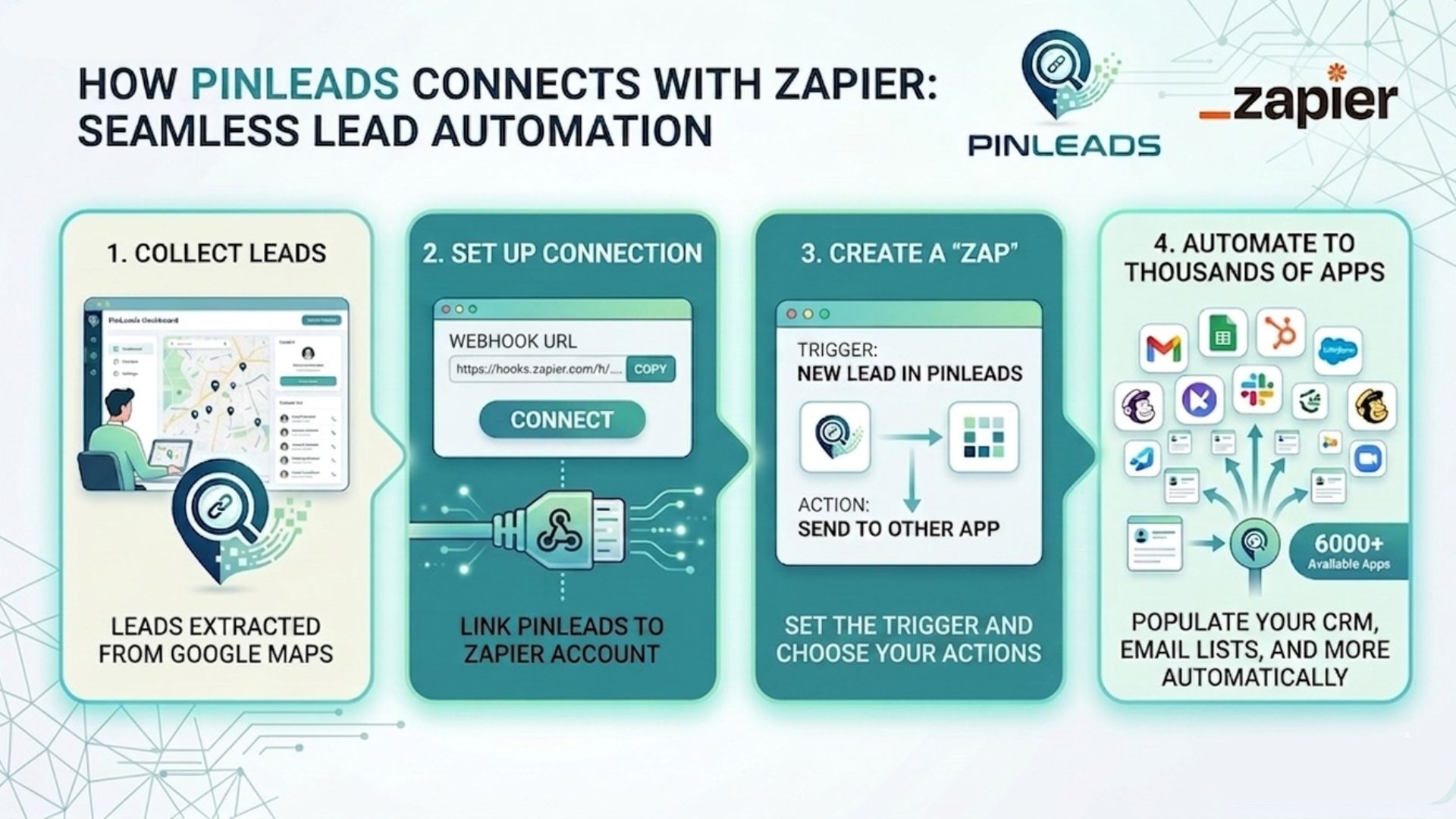
What is Zapier?
Zapier is an automation tool that connects your favorite apps together. With PinLeads + Zapier, you can automatically send your scraped leads to 5000+ apps including:
No coding required - just set up a Zap and your leads will flow automatically whenever you extract leads.
How It Works
Create a Zapier Account
Go to zapier.com and create a free account
Create a New Zap
Choose "Webhooks by Zapier" as your trigger and select "Catch Hook"
Copy Your Webhook URL
Zapier will give you a unique webhook URL - copy it
Configure in PinLeads
Paste the webhook URL in your PinLeads account settings
Choose Your Destination
Select where you want your leads sent (HubSpot, Google Sheets, etc.)
Map Your Fields
Match lead fields to your CRM fields (name, email, phone, etc.)
Turn on Your Zap
Enable your Zap and start scraping - leads will flow automatically!
Available Data Fields
When your webhook triggers, PinLeads sends the following data for each lead:
nameBusiness name from directory
emailEmail address(es) extracted from website
phonePhone number from directory
websiteBusiness website URL
addressFull address from directory
linkedinLinkedIn company page URL (if found)
ratingStar rating (optional, if available)
reviewsNumber of reviews (optional, if available)
Pricing
Pro and Business Plans Only
Zapier integration is available for Pro (starting at $9.99/month) and Business (starting at $29.99/month) subscribers.
Upgrade to ProReady to Set Up Your Webhook?
Configure your Zapier webhook in your account settings.
Go to Account SettingsTroubleshooting
Webhook not triggering?
- Check your delivery log in Account Settings for failed attempts
- Verify your webhook URL is correct
- Ensure your Zap is turned on in Zapier
- Check that you have a Pro or Business plan
Data not appearing in your CRM?
- Make sure you mapped the fields correctly in Zapier
- Check if your CRM has field validation that's blocking the data
- Try sending a test webhook from Account Settings to verify the data format
Need help setting up Zapier?
Contact our support team and we'll help you get your integration working.