Lead Dashboard: Your Built-in CRM for Scraped Leads
 Jared
Jared
Table of Contents
- What is the Lead Dashboard?
- Data Retention by Plan
- Key Features
- How to Use the Dashboard
- CRM Integrations
- Best Practices
- FAQ
What is the Lead Dashboard?
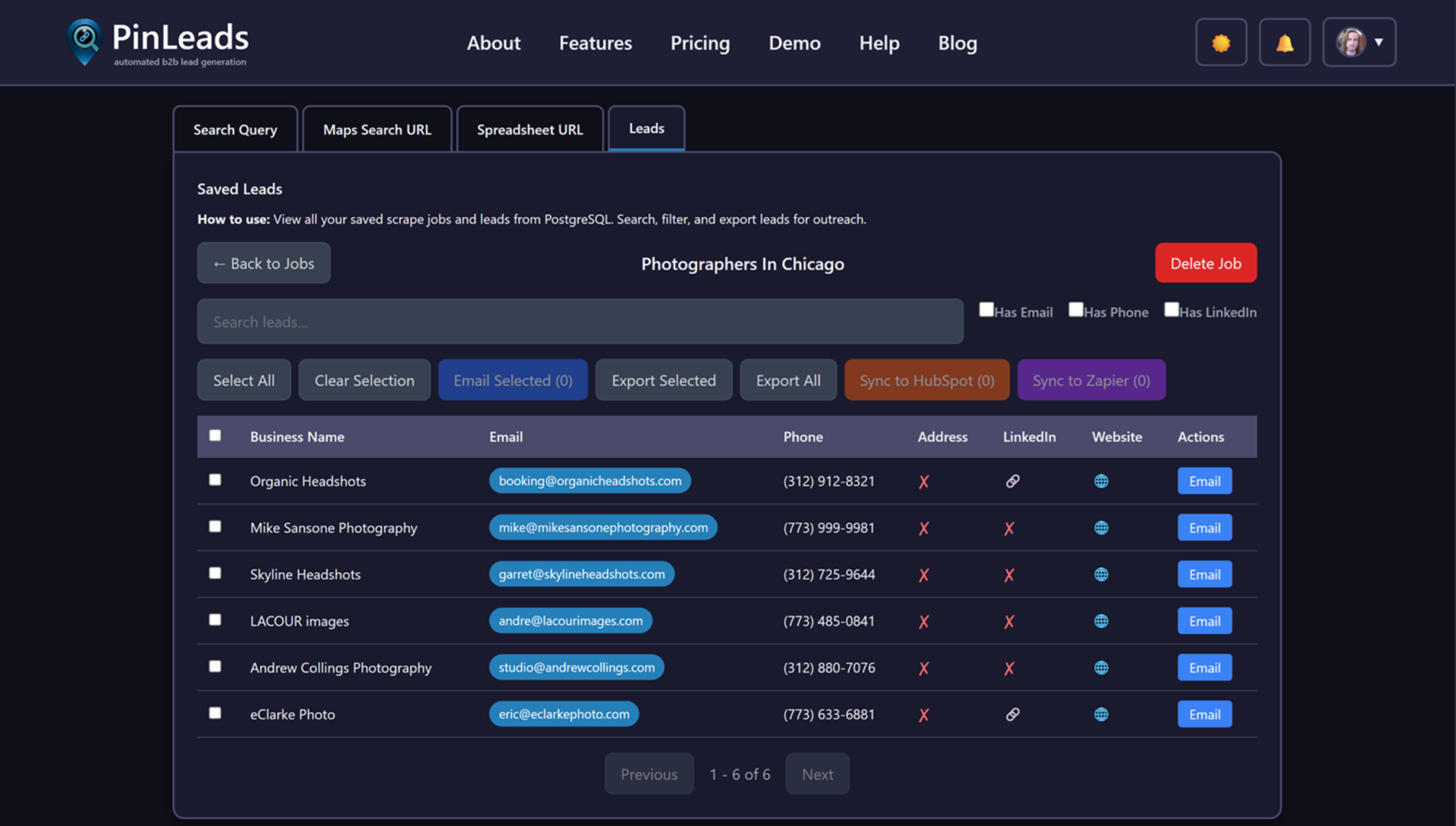
The PinLeads Lead Dashboard is a lightweight CRM built directly into your scraping workflow. Instead of exporting leads to CSV and managing them in spreadsheets or external CRMs, all your scraped leads are automatically stored and accessible in one place.
Think of it as:
- A centralized hub for all your lead generation activity
- A searchable database of every business you've ever scraped
- A quick way to find, contact, and export leads from past scrapes
- A bridge between scraping and outreach
What you can do:
- View all your past scraping jobs and their results
- Search and filter leads by email, phone, LinkedIn, or custom criteria
- Email leads directly with one click
- Export selected leads or entire jobs to CSV
- Sync leads to HubSpot or Zapier for advanced CRM workflows
- Delete jobs you no longer need
The dashboard eliminates the friction between scraping and outreach. No more digging through old CSV files or wondering which scrape contained that one perfect lead.
Data Retention by Plan
One of the most important aspects of the lead dashboard is data retention — how long your leads are stored. Different plans offer different retention periods:
| Plan | Data Retention |
|---|---|
| Free | 1 day |
| Pro | 30 days |
| Business | 90 days |
| Teams | 1 year |
Why data retention matters:
Lead generation isn't always about immediate outreach. Sometimes you scrape a list, get busy with other priorities, and come back weeks or months later. With extended data retention, your leads are still there when you need them.
Example scenarios:
- You scrape dentists in Austin but don't start outreach for 3 weeks
- You build a prospect list for a future campaign launch
- You want to revisit leads from a previous quarter
- You're comparing results across different time periods
Key Features
Job Management
Every scraping job is saved as a separate entry in the dashboard. You can:
- View job names, dates, and lead counts
- See which searches yielded the most results
- Delete jobs you no longer need
- Revisit successful scrapes for follow-up campaigns
Lead Search & Filtering
Find specific leads quickly with powerful search and filter options:
Search by:
- Business name
- Email address
- Phone number
- LinkedIn profile
- Website URL
Filter by:
- Has email
- Has phone
- Has LinkedIn
- Custom criteria
This is invaluable when you're looking for a specific lead from a past scrape or want to segment your list for targeted outreach.
Direct Email Integration
Contact leads instantly without leaving the dashboard:
- Click the email button on any lead to open your email client
- Select multiple leads and email them all at once (BCC)
- No copy-pasting required
This speeds up outreach significantly — you can go from finding a lead to sending an email in seconds.
Bulk Export
Export flexibility for any workflow:
- Export selected leads to CSV
- Export entire jobs to CSV
- Combine exports from multiple jobs
- Standard CSV format compatible with all CRMs
CRM Sync
Send leads directly to your existing CRM:
- HubSpot: One-click native sync with auto-upsert
- Zapier: Connect to 5000+ apps including Salesforce, Pipedrive, Google Sheets
This eliminates manual data entry and ensures your leads flow seamlessly into your existing sales workflow.
How to Use the Dashboard
Step 1: Navigate to the Leads Tab
From the main scraping dashboard, click the "Leads" tab in the mode switcher. This takes you to the lead dashboard.
Step 2: View Your Jobs
You'll see a list of all your scraping jobs:
- Job name (based on search query or URL)
- Completion date
- Number of leads extracted
- Status indicators
Click any job to view its leads.
Step 3: Search and Filter
Use the search bar to find specific leads, or apply filters to narrow down results:
- Check "Has email" to see only leads with email addresses
- Check "Has phone" to see only leads with phone numbers
- Check "Has LinkedIn" to see only leads with LinkedIn profiles
Step 4: Select and Act
Select individual leads or use "Select All" to:
- Email selected leads directly
- Export to CSV
- Sync to HubSpot or Zapier
- Delete (if you no longer need them)
Step 5: Manage Jobs
From the jobs list, you can:
- Delete entire jobs you no longer need
- Revisit jobs for additional outreach
- Compare results across different scrapes
CRM Integrations
The lead dashboard works seamlessly with your existing CRM stack:
HubSpot Integration
Available for: Pro, Business, Teams
Native one-click sync that:
- Auto-upserts contacts by email (no duplicates)
- Creates companies automatically
- Associates contacts with companies
- Maps all lead fields to HubSpot properties
No CSVs, no Zaps required. Just select your leads and click "Sync to HubSpot."
Zapier Integration
Available for: Pro, Business, Teams
Connect PinLeads to 5000+ apps via Zapier webhooks:
- Salesforce, Pipedrive, Copper
- Google Sheets, Airtable
- Email marketing tools
- Custom workflows
Create Zaps that trigger when you sync leads from the dashboard, automating your entire outreach pipeline.
Best Practices
1. Name Your Scrapes Intentionally
When running scrapes, use descriptive queries or URLs. This makes it easier to find specific jobs later in the dashboard.
Good: "roofing contractors Dallas TX" Bad: "search"
2. Regular Cleanup
Periodically review and delete jobs you no longer need. This keeps your dashboard organized and makes it easier to find relevant leads.
3. Use Filters for Segmentation
Before exporting or syncing, use filters to segment your leads. For example, filter to "Has email" before syncing to HubSpot to ensure you're only sending high-quality leads.
4. Combine with Analytics
Use the Analytics Dashboard to identify your best-performing searches, then revisit those jobs in the Lead Dashboard for follow-up outreach.
5. Plan Your Retention Needs
Choose a plan based on how long you need to store leads:
- Free: 1 day — for immediate outreach only
- Pro: 30 days — for monthly campaign cycles
- Business: 90 days — for quarterly planning
- Teams: 1 year — for long-term prospect database building
FAQ
Is the lead dashboard a full CRM?
No, it's a lightweight CRM focused on lead management. It excels at storing, searching, and exporting scraped leads, but doesn't have full CRM features like pipeline management, deal tracking, or advanced reporting. For full CRM functionality, use our HubSpot or Zapier integrations.
What happens to my leads when retention expires?
Leads are automatically deleted when the retention period expires. For example, on the Free plan, leads are deleted 24hours after the scrape completes. Upgrade to a paid plan for extended retention.
Can I export leads before they expire?
Yes, you can export leads to CSV at any time before they expire. Once exported, the data is yours to keep permanently.
Is my lead data secure?
Yes. Your lead data is encrypted and only accessible to you. We don't share or sell your scraped leads.
Can I restore deleted jobs?
No, deleted jobs cannot be restored. Be careful when deleting — consider exporting first if you might need the data later.
Does the dashboard count against my scraping limits?
No, viewing, searching, and exporting leads from the dashboard doesn't consume any of your scraping time or usage limits.
Can I share leads with my team?
On the Teams plan, all team members can access the shared lead dashboard. On Pro and Business plans, leads are accessible only to the account owner.
What's the difference between the lead dashboard and analytics?
The Analytics Dashboard tracks performance metrics (leads per scrape, discovery rates, trends). The Lead Dashboard stores and manages the actual lead data (business names, emails, phones). They work together — use analytics to optimize your strategy, then use the lead dashboard to execute outreach.
Can I import leads into the dashboard?
No, the lead dashboard only stores leads scraped through PinLeads. It doesn't support importing external lead lists.
How do I upgrade for longer retention?
Visit the pricing page to upgrade your plan. Retention upgrades take effect immediately for new scrapes. Existing scrapes retain their original expiration dates.
Getting Started
Ready to take control of your lead data?
- Check your current plan and data retention
- Navigate to the Leads tab in the scraping dashboard
- Browse your past jobs and explore the search/filter features
- Try emailing or exporting a few leads
- Upgrade if you need longer retention
The lead dashboard is available immediately — your past scrapes are already there waiting for you.
Free Tools to Help You
Cold Email Subject Line Generator
Generate personalized, high-converting subject lines with predicted open rates.
Try Tool →Email Deliverability Checker
Analyze your emails for spam triggers and get deliverability scores.
Try Tool →Lead List ROI Calculator
Calculate the ROI of your lead generation campaigns with visual reports.
Try Tool →Related Articles
How to Find Roofing Leads Using Google Maps in 2026 (Complete Guide)
Discover how to find high-quality roofing contractor leads using directory extraction. Step-by-step tutorial with templates, CSV examples, and proven outreach strategies for B2B sales.

How Web Designers Find Local Business Clients with Directory Extraction
Learn the exact workflow successful web designers use to find local businesses with outdated websites, extract contact info, and pitch redesign services that convert.

How to Extract Leads from Google Maps Without Coding (2026 Tutorial)
Complete no-code guide to extracting leads from Google Maps. Extract names, phones, emails, and websites without writing Python code.
Directory Extractor with CSV Export: Complete Integration Guide
Learn why CSV export is critical for directory extractors and how to integrate scraped local business data into your sales pipeline and CRM systems.

Lead Generation for Commercial Cleaning Companies Using Google Maps
How commercial cleaning businesses can stop relying on referrals and start actively finding facility managers, property managers, and corporate clients using Google Maps extraction.

Why Apollo.io Fails for Google Maps Lead Gen (Better Alternative)
Apollo.io is built for enterprise SaaS sales, not businesses on Google Maps. Learn why Google Maps extraction is superior for finding plumbers, roofers, dentists, and service providers.